Team & workspaces
Three levels, never mixed: you, your workspace, and each event inside it.
Each level has its own page, and the address bar says which one you are on.
/app/{workspace}/{event}/…for anything about one event,/app/{workspace}/workspacefor the team,/app/accountfor you. Your own two live in the avatar menu, top right; the event’s is Event settings, pinned at the bottom of the sidebar. Every one of those is a link you can paste to a colleague.Workspace settings has three tabs: General, Team and Events.
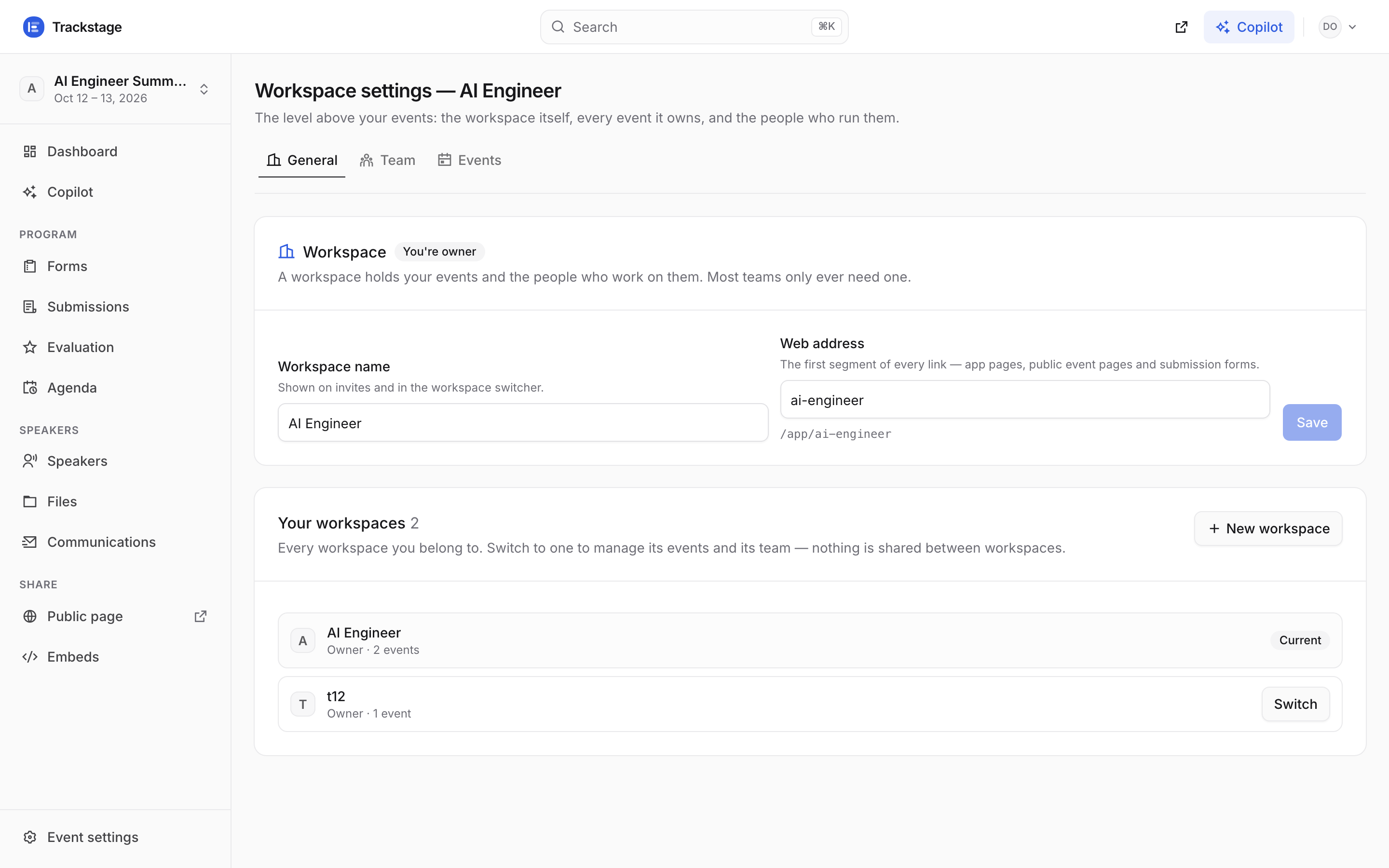
General holds “Your workspaces” — switch the whole app, sidebar included, to another one, or make a new one — plus this workspace's name and web address. That web address is the first segment of every link you will ever send: app pages, public event pages, submission forms. It starts out made from your own name, so it is worth setting once, early. Changing it moves every link at once.
Team is everyone who can work here, with their role and exactly which events they can reach.
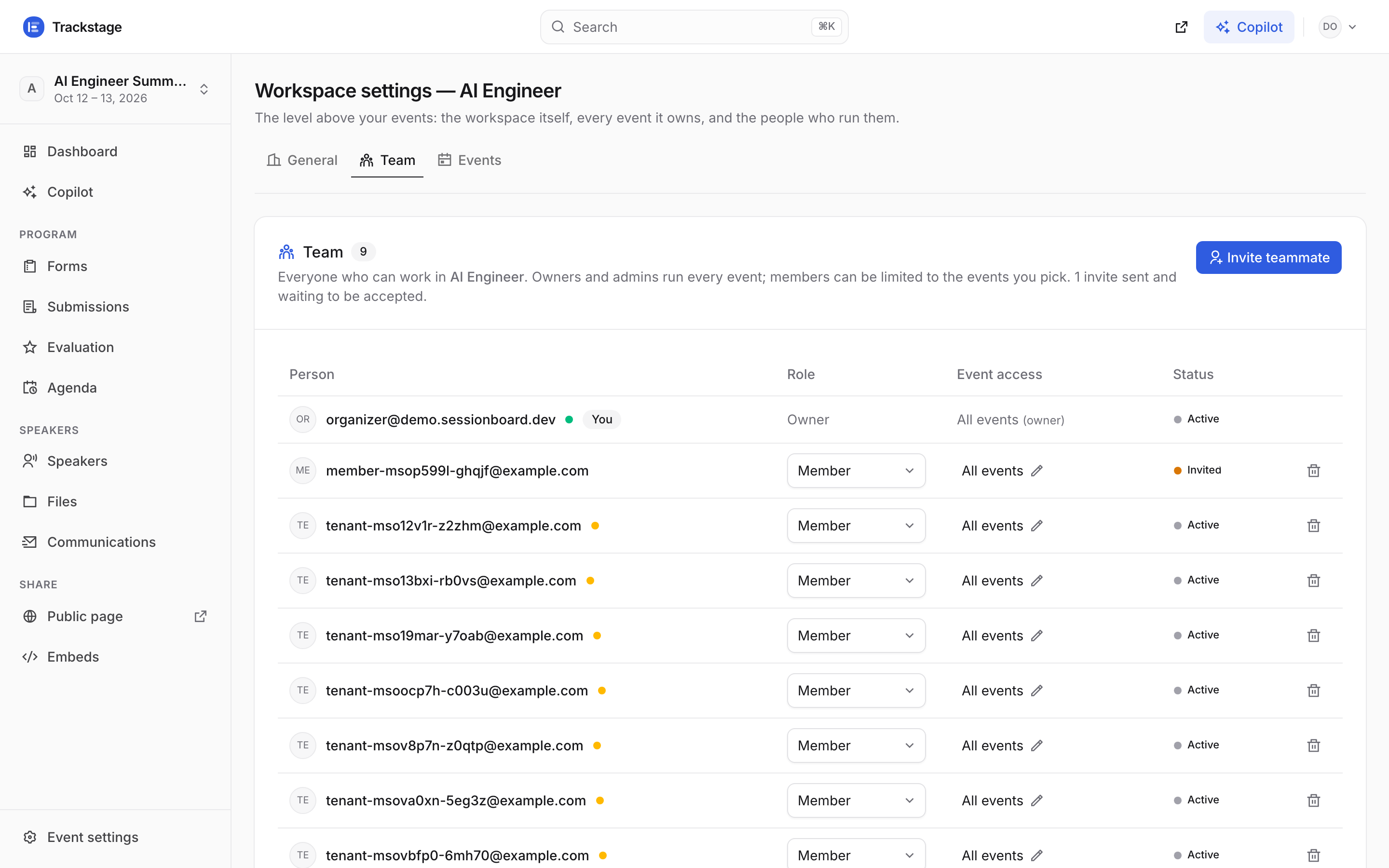
Invited people show as Invited until they sign in with that address, then Active. Press “Invite teammate”, enter an email, pick Admin or Member, and choose which events they can reach.
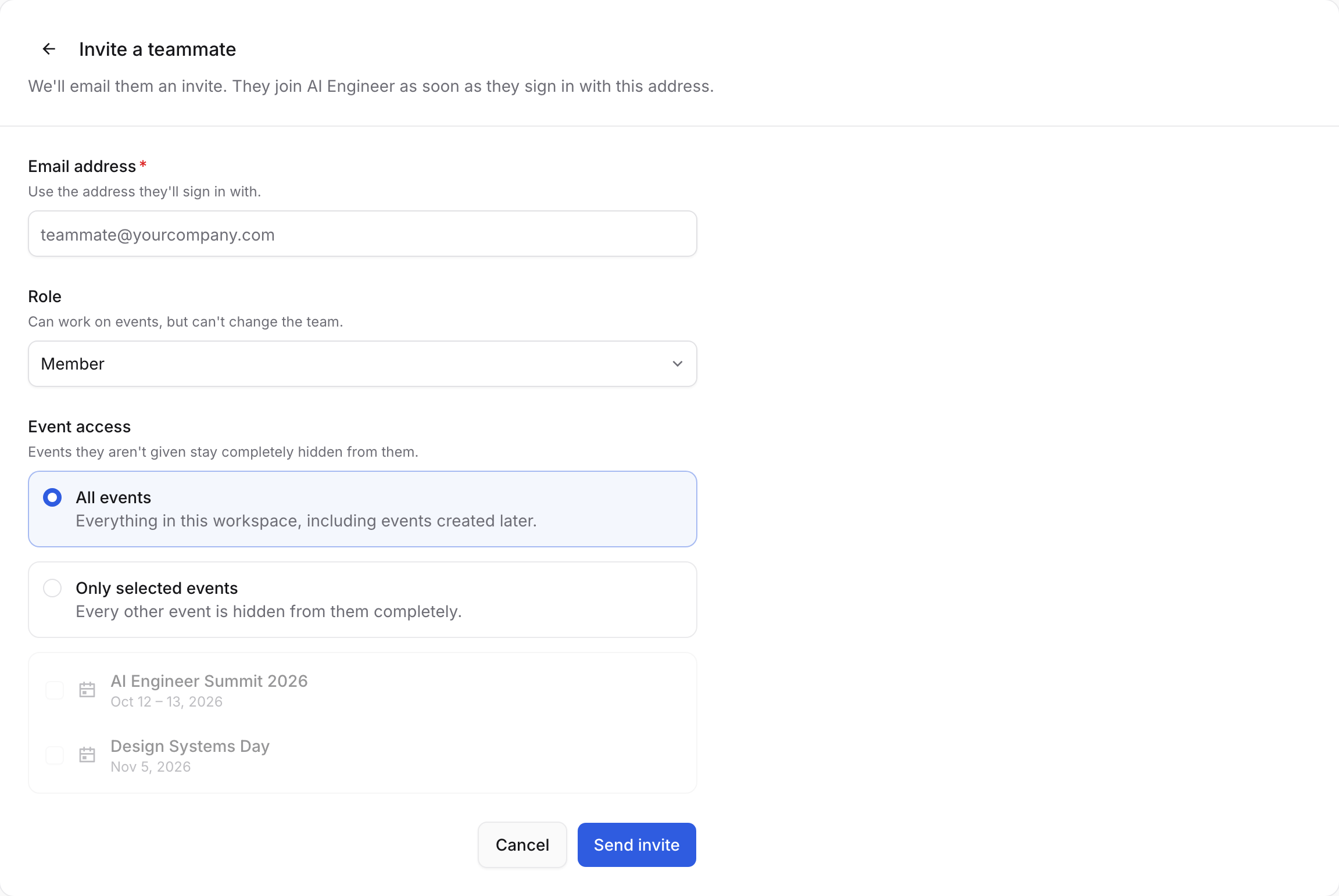
Inviting happens in place, right where the table was — no dialog stacked on top of a dialog. “Back” returns to the list. Event access is real isolation, not a filter: an event a member wasn’t given is invisible to them — it never appears in their switcher, and its address answers the same “Event not found” a stranger gets. Owners and admins always see everything.
Change a role from the select on their row; remove someone with the bin icon. Only the owner can change roles.
Admins can create events, run decisions and invite people. Members can work inside the events they were given, but not restructure the team. Each event also has its own Team tab in Event settings — the same table, narrowed to who can open that one event.
Switch event from the block at the top of the sidebar. It also holds “All events” and “New event”.
Multiple events are the normal case — every page in the app follows whichever one is selected here, and the URL changes with it, so two browser tabs can sit on two different events at once.
Your own profile, password and API keys live on Account settings, reachable from the avatar menu.
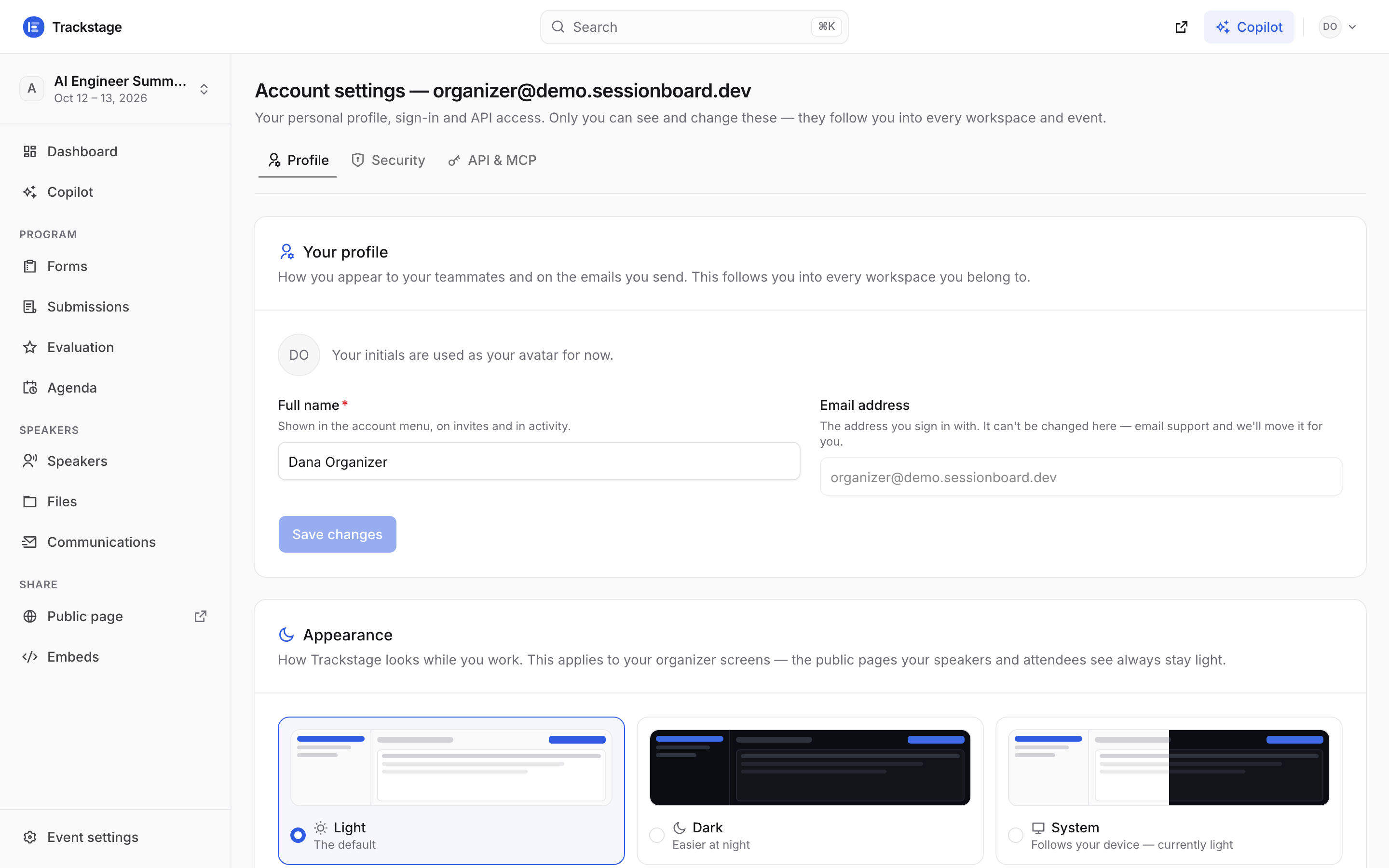
Three tabs: Profile, Security (password) and API & MCP — your personal keys and the MCP connection. They follow you into every workspace. Appearance sits under Profile: Light, Dark or System. It changes your organizer screens only — the public pages your speakers and attendees see always stay light.