Publish your program
One button turns the private board into a public schedule. You never have to publish twice.
On Agenda, press “Publish agenda” and confirm. The dialog tells you exactly how many sessions go live and where.
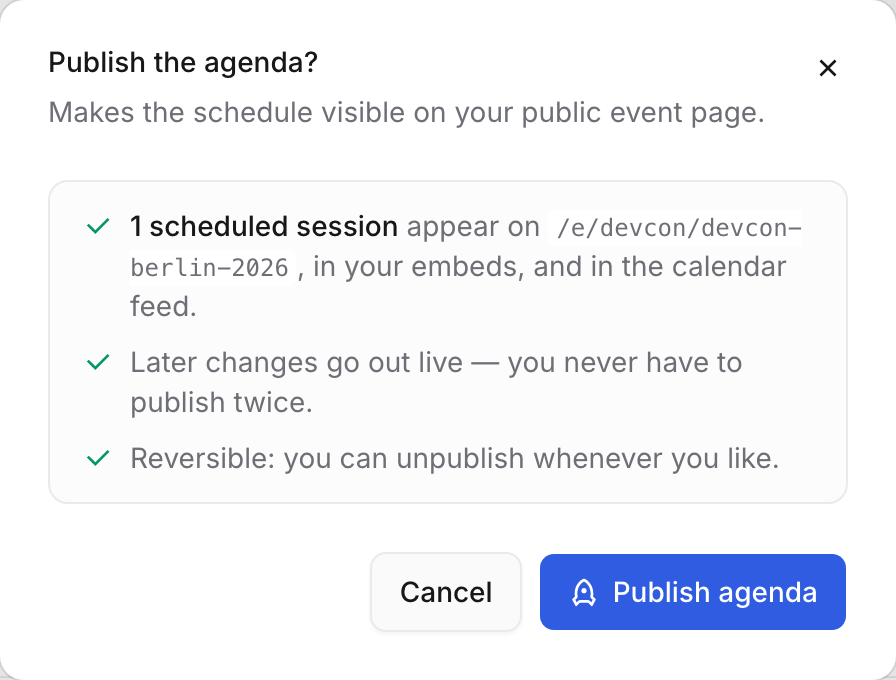
Until you do, the public page says “Schedule coming soon” — no times leak. That is it. Your public event page is live, with Schedule, Speakers, Sessions and My schedule.
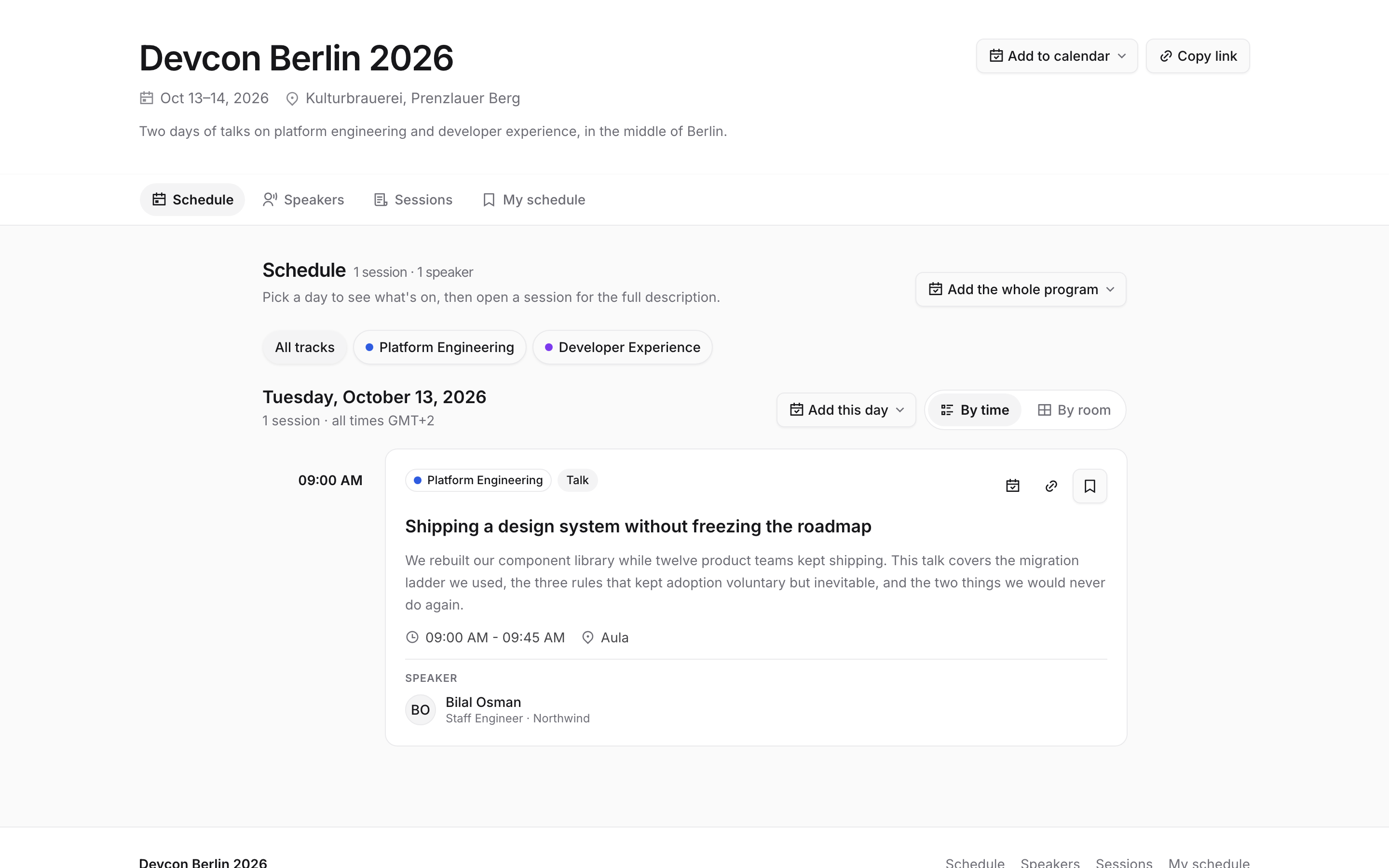
The same talk the speaker submitted, now on a public programme. Every later edit goes out live — no re-publishing. Attendees can take it with them. Every level has an add-to-calendar button next to it.
Add to calendar at the top of the page takes the whole event; Add the whole program and Add this day do what they say; and each session card has its own. Google, Outlook, Apple or a plain
.icsdownload — and My schedule lets someone bookmark just the sessions they picked and subscribe to those.Publishing is one reversible flag.
An Unpublish button appears next to a “Published · date” pill, and unpublishing deletes nothing.
Need it on your own website? Open Embeds — options on the left, a live preview of the real thing on the right.
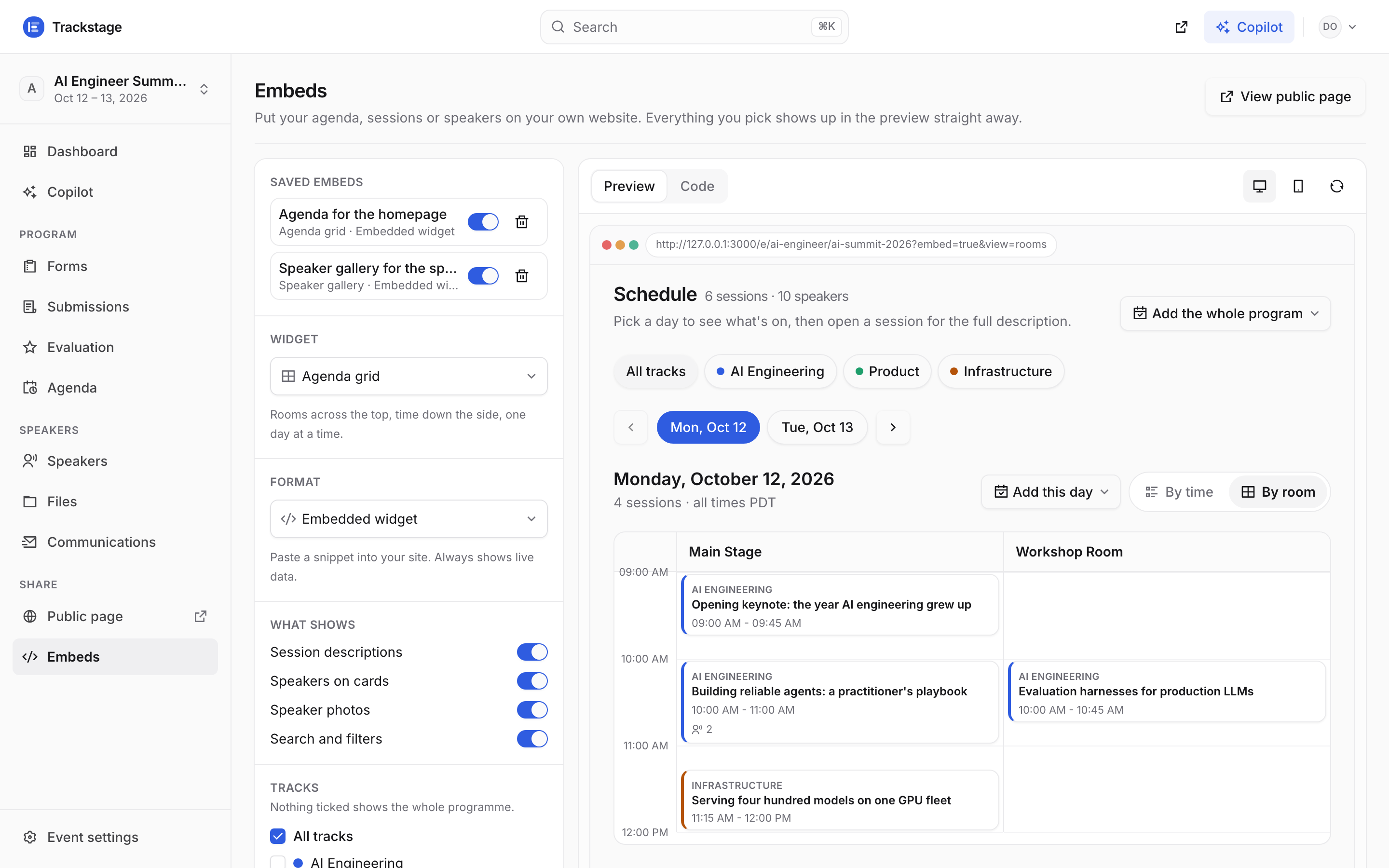
Pick a widget (agenda grid, sessions, speakers…), a format (embedded widget, link, static HTML, JSON, XML, calendar feed), then what shows — down to which tracks. The preview updates as you pick, and the Code tab is the snippet to paste. Give the configuration a name so you can come back to it — “Agenda for the homepage”.
Saved embeds sit at the top of the left column, each with an off switch: turn one off and every page you pasted it into says “This embed is turned off” instead of showing the programme — no need to edit your website.
The calendar and XML feeds need no key at all: attendees subscribe once and their calendar keeps itself right, and a CMS that imports an XML feed re-reads yours whenever the programme changes.