Getting started
From a blank account to an event you can open a call for speakers on — about two minutes.
Create your account with a name, an email address and a password.
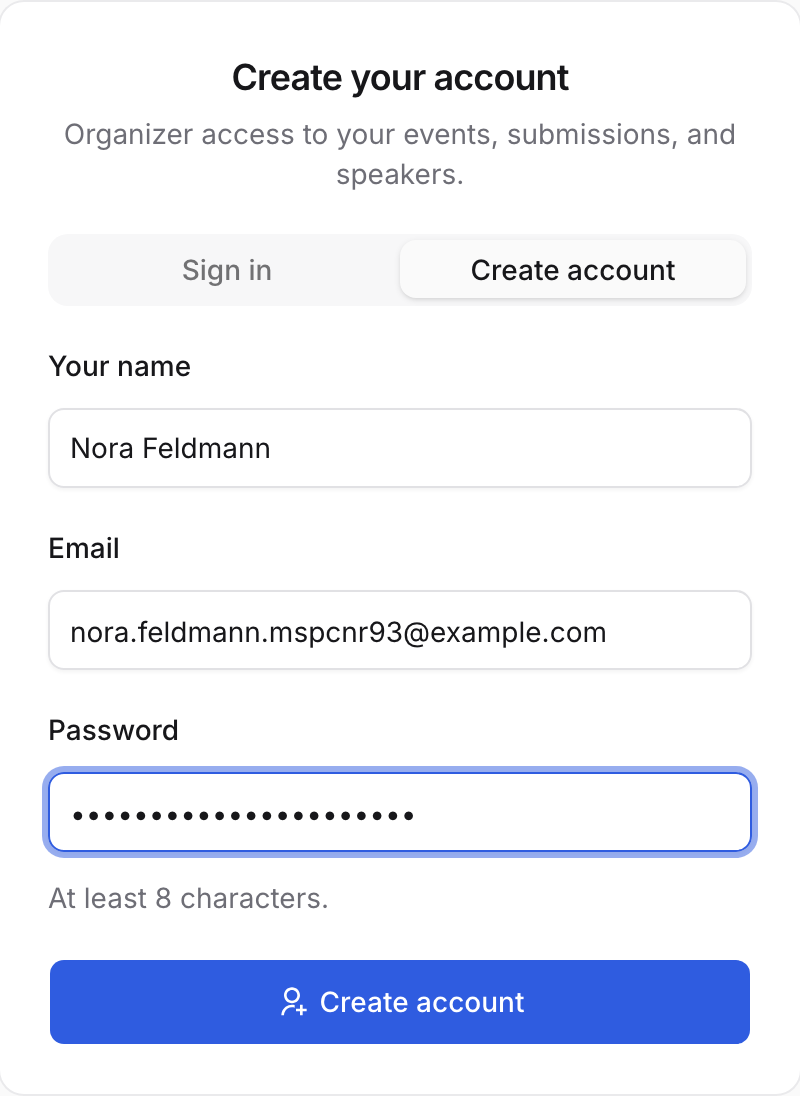
No credit card, no trial clock — it is open source. We email you a confirmation link. Until you open it, signing in lands you on a “Confirm your email” page with a Resend button — so nothing else is in the way, and nothing is lost.
Setup takes over the whole screen: three short questions and nothing else. First, name your workspace — your organisation, the thing that owns your events and your team.
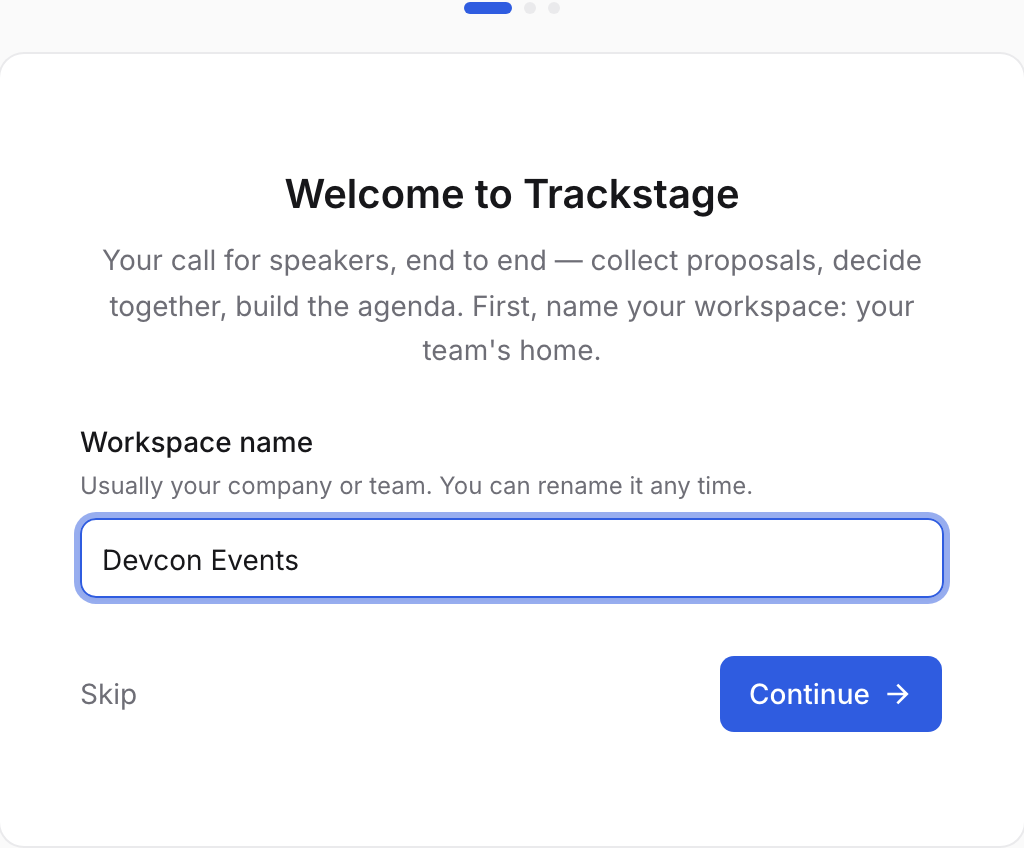
Three dots at the top say how far there is to go. “Skip” moves past one question — it never dumps you out. Then the event itself. Only the name is required; the public web address writes itself underneath as you type.
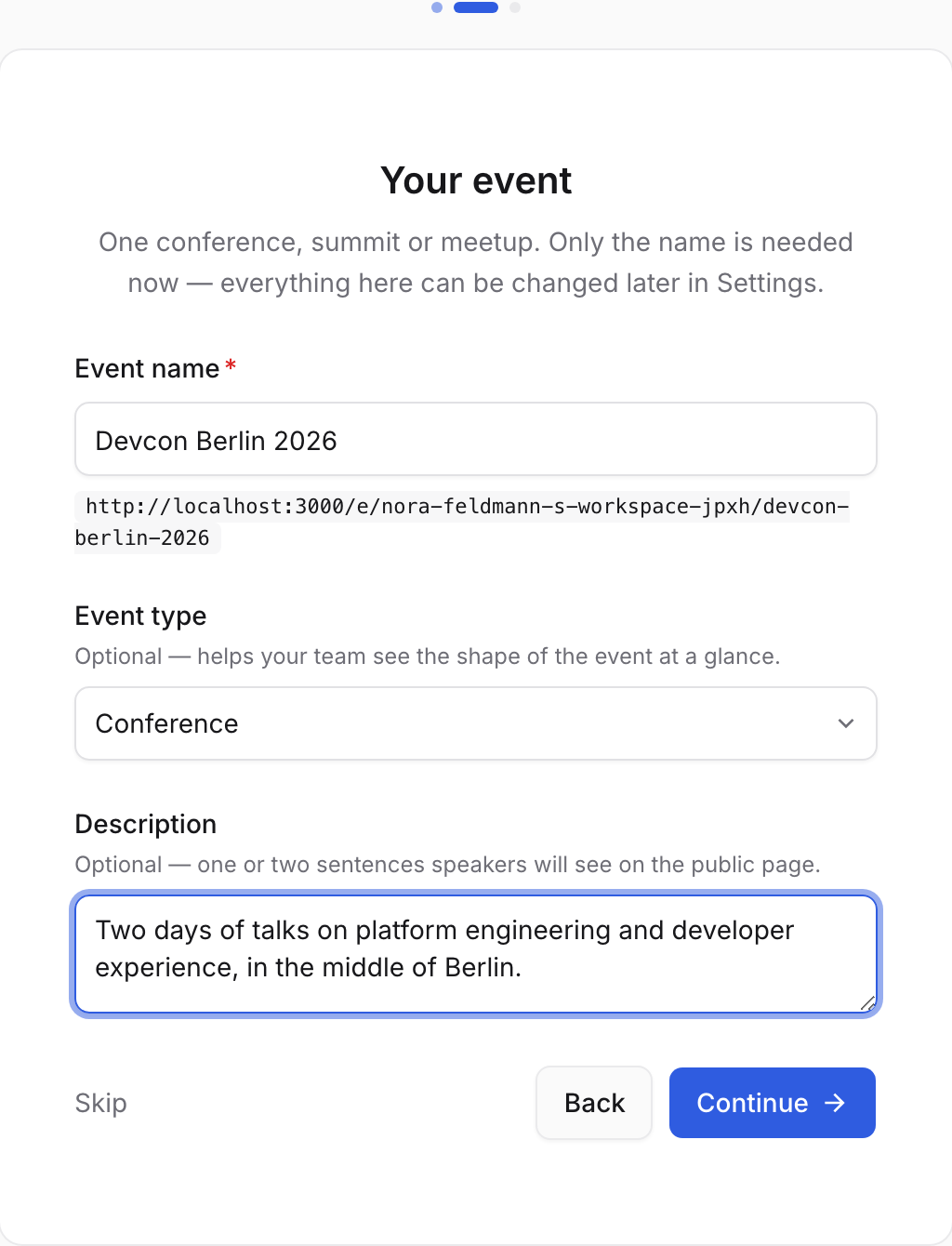
Type and description are optional — the description is the paragraph speakers read on your public page. The address under the name has two parts:
/e/{workspace}/{event}. The second half comes from the event name you just typed. The first is your workspace’s address, which starts out made from your own name — change it once in Workspace settings and every link follows.Last, when and where. All optional: fill in what you know, leave the rest blank.
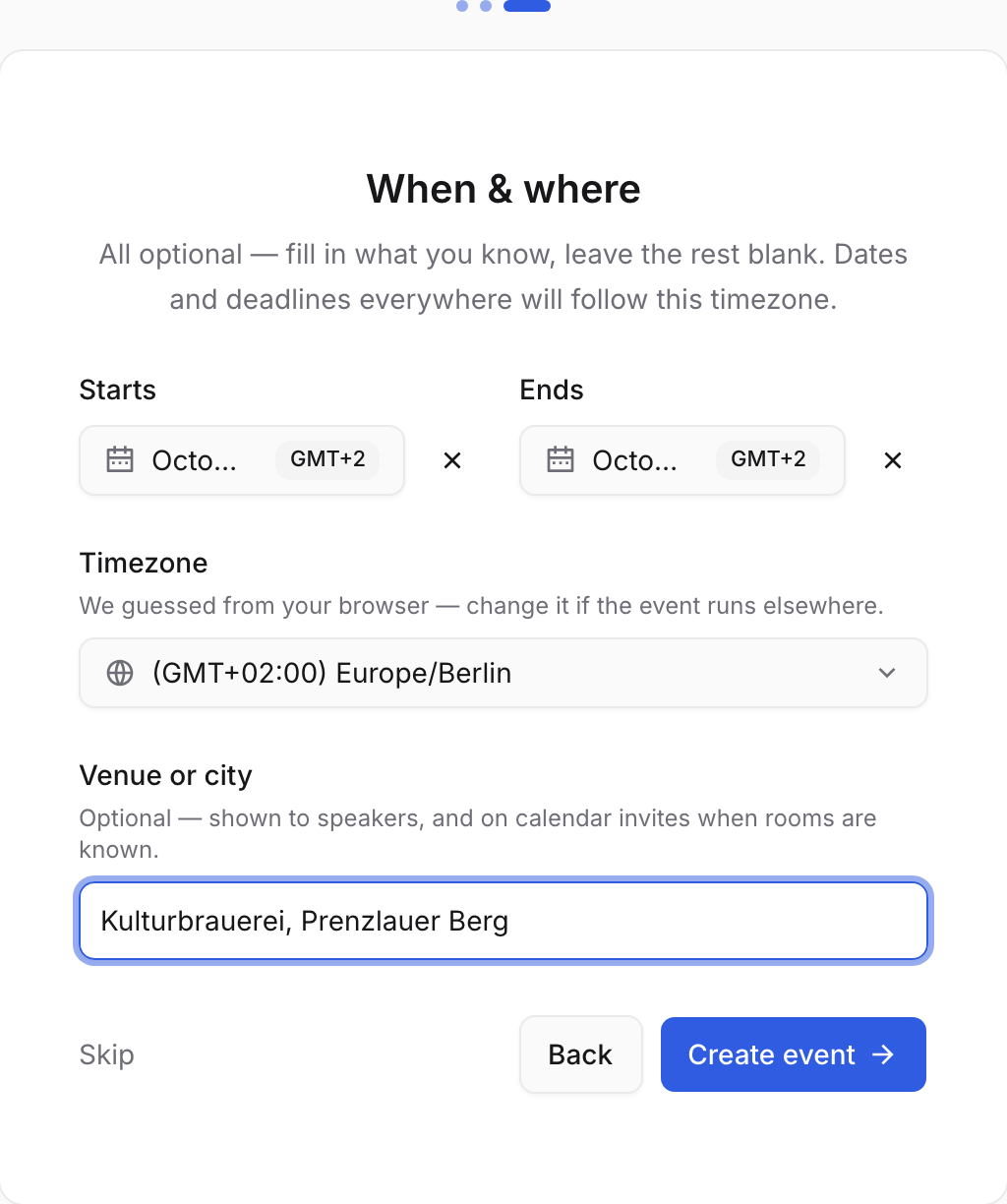
The timezone is guessed from your browser. Every date, deadline and calendar invite in the app follows it, so it is worth a glance. Press “Create event” and you are in — on your new event, with the app around you.
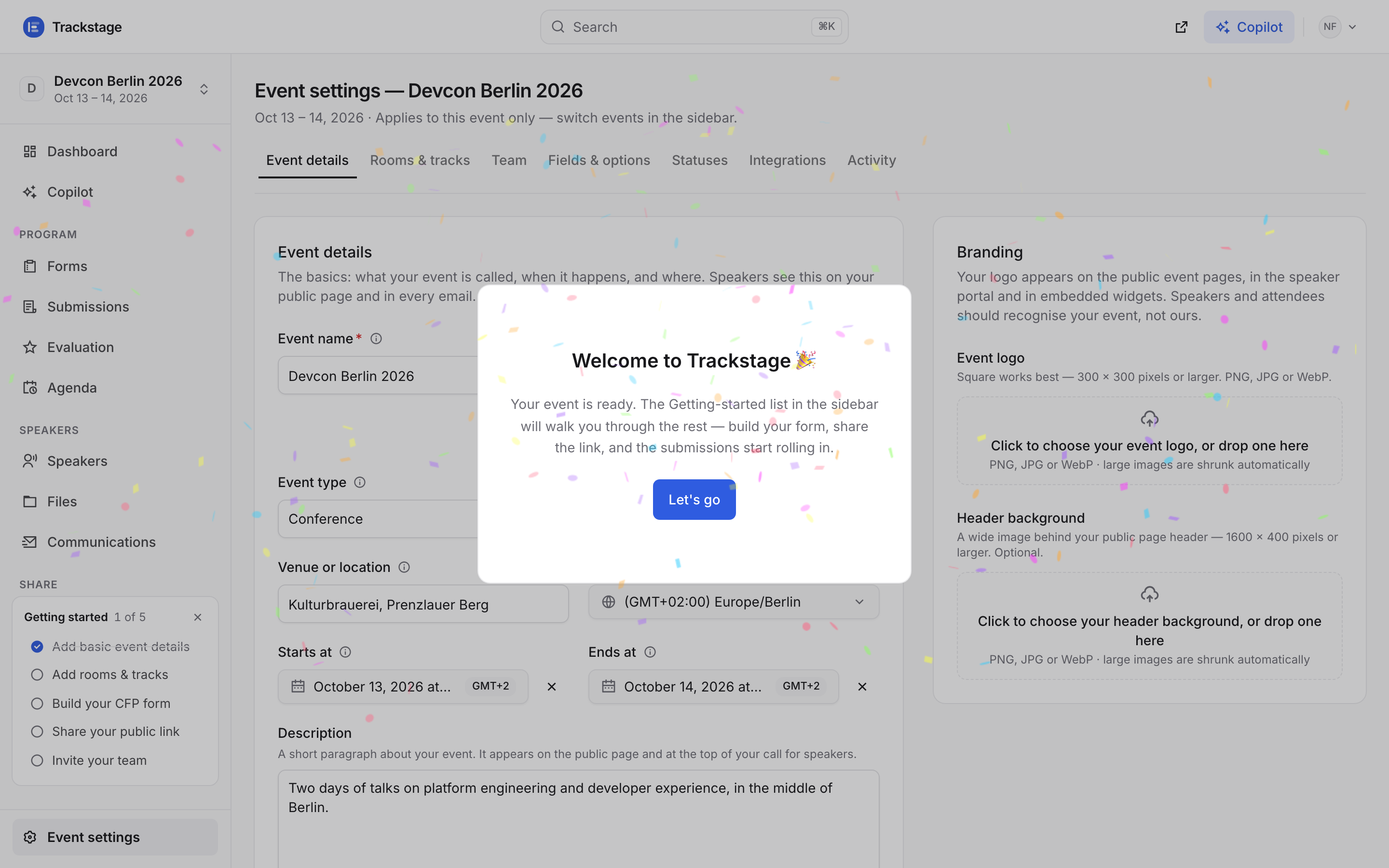
The sidebar is the whole app: Dashboard and Copilot at the top, then Program, Speakers and Share, with Event settings pinned at the bottom. The Getting started list above it counts off the five things worth doing first, and ticks them itself as you do them. Close it whenever you like — it disappears for good once all five are done.
Event settings is where everything about this one event lives, on seven tabs.
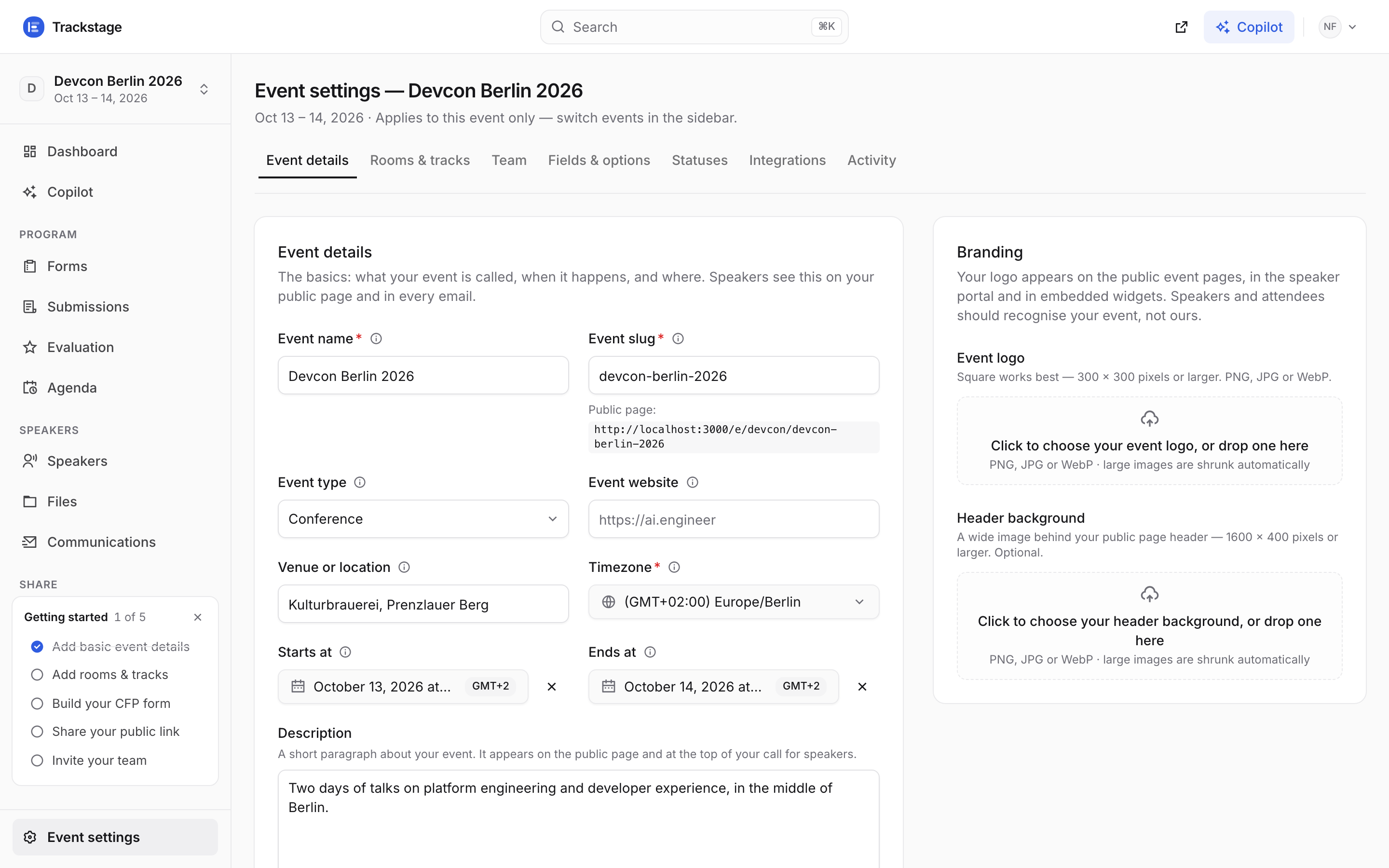
Event details · Rooms & tracks · Team · Fields & options · Statuses · Integrations · Activity. Everything here changes this event and no other. Your dates and venue are already filled in from setup. Branding sits beside them: a logo and a header image, which appear on your public pages, in the speaker portal and in embedded widgets.
Add your rooms and tracks while you are here — Settings → Rooms & tracks. The agenda has nowhere to put a session until a room exists.
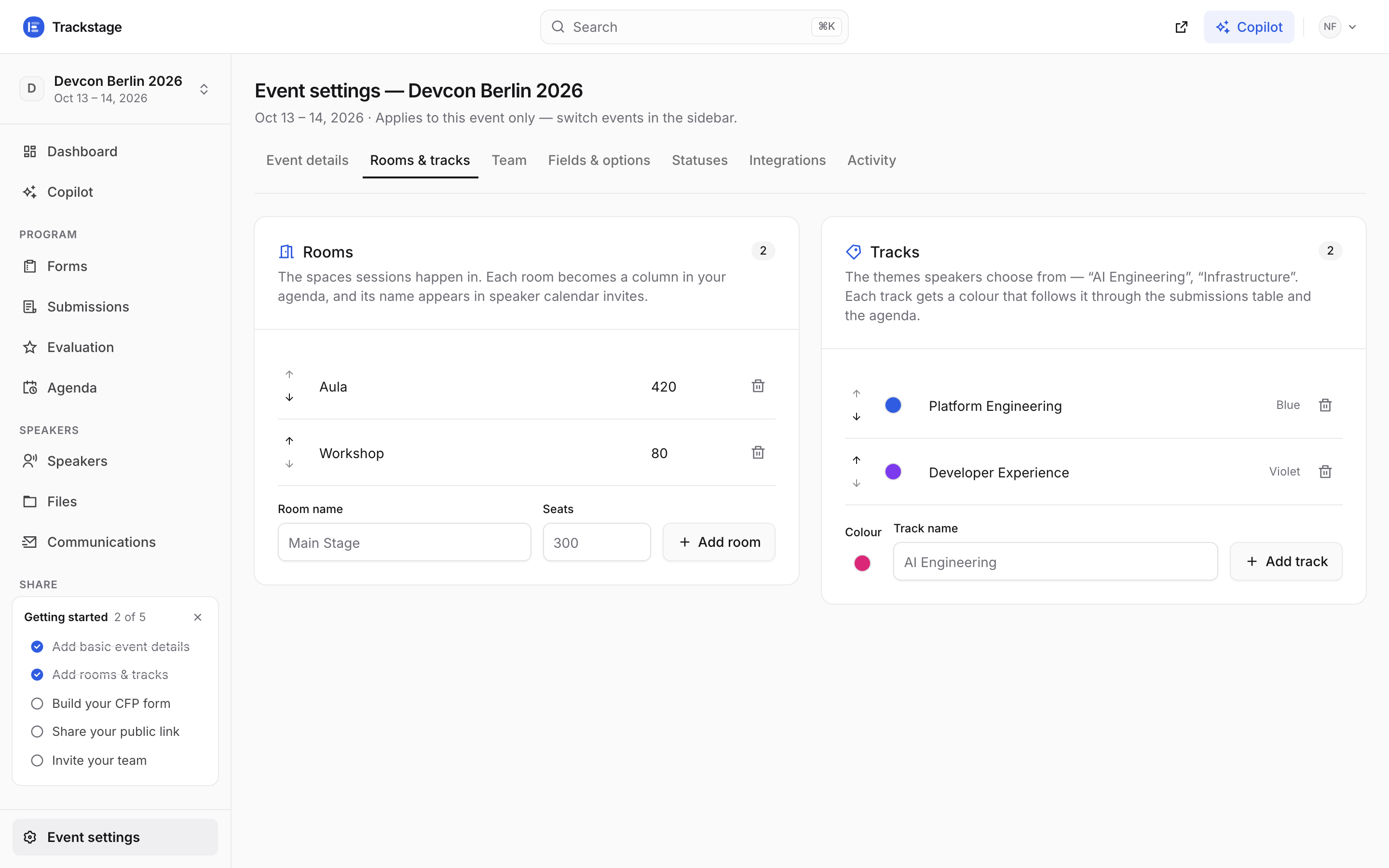
Tracks colour every card and become the columns in the track view. The dashboard is your home. On day one it is honest about being empty and tells you what to do next.
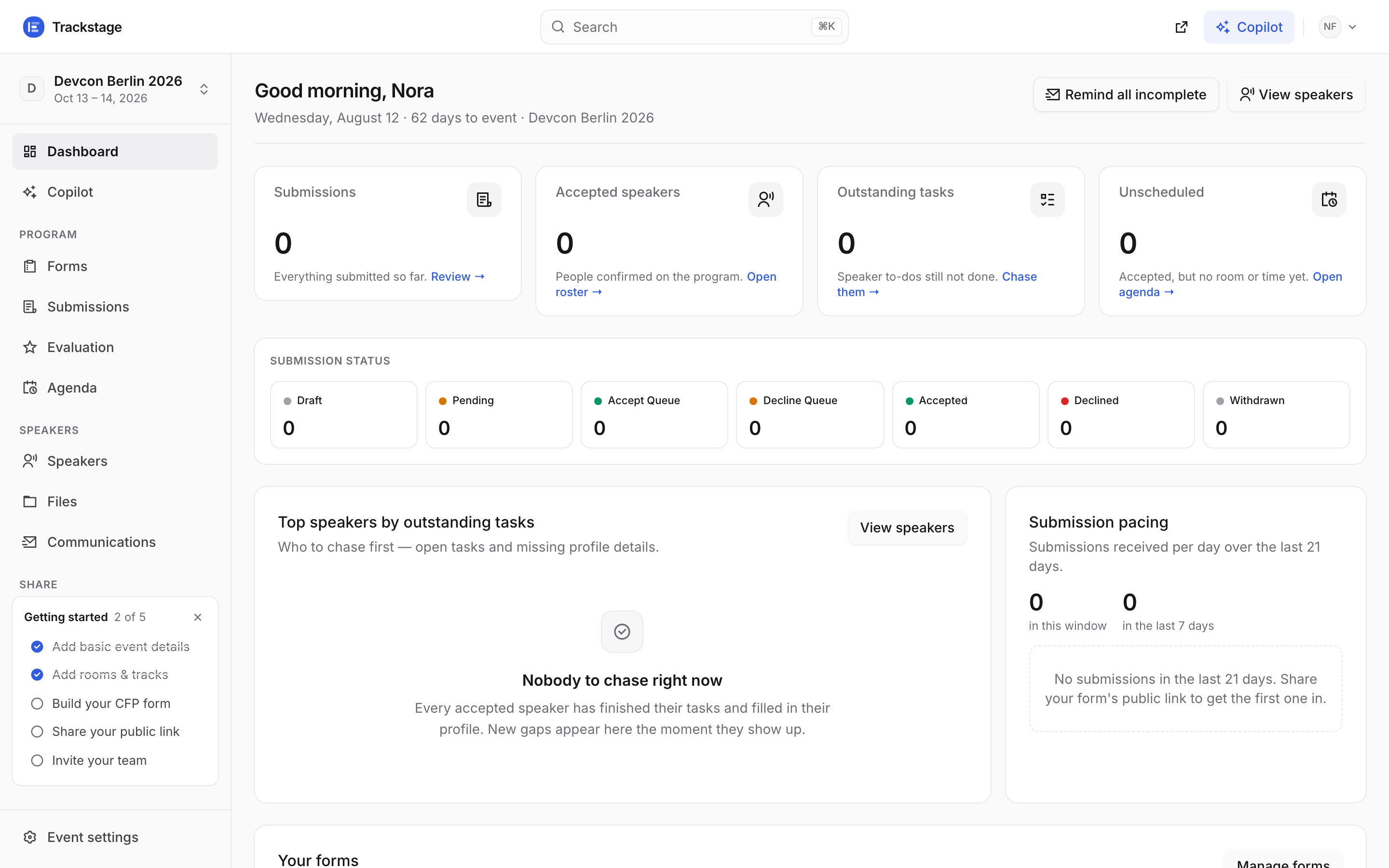
Two of five ticked already: the event details and the rooms and tracks you just added. Once submissions start arriving it fills in: counts by status, what is still unscheduled, and who owes you something.
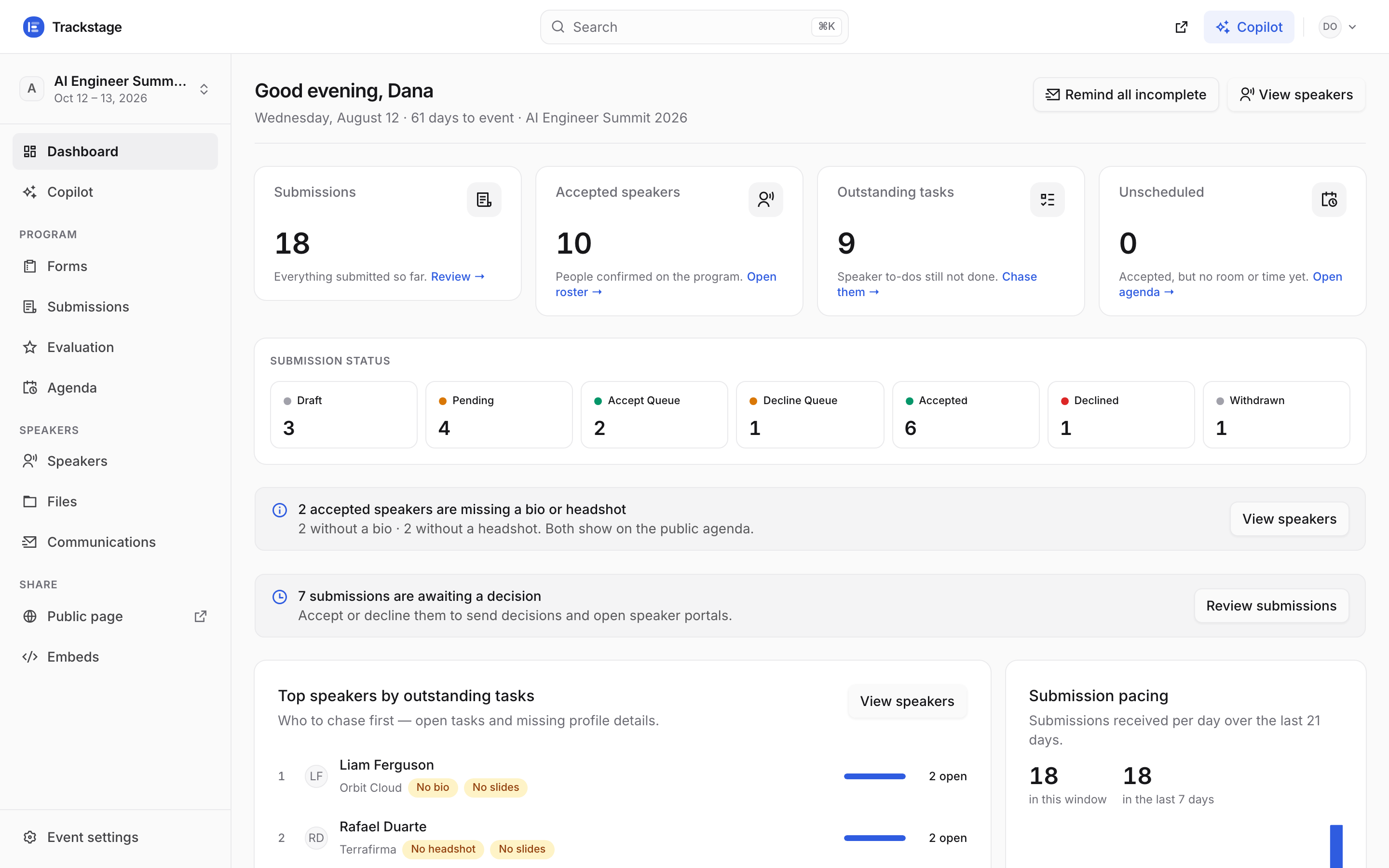
A different, busier event — so you can see what the numbers look like once a call has been open for a while.
/app/{workspace}/{event}/…. Switch events from the block at the top of the sidebar — or just send someone the link. If a page looks empty, check the name in that block first; see Team & workspaces.