Speaker portal
What your speakers see. Same wording as your side, so nobody has to translate.
Speakers get in with a link — from the confirmation after submitting, or from any email you send them. No password.
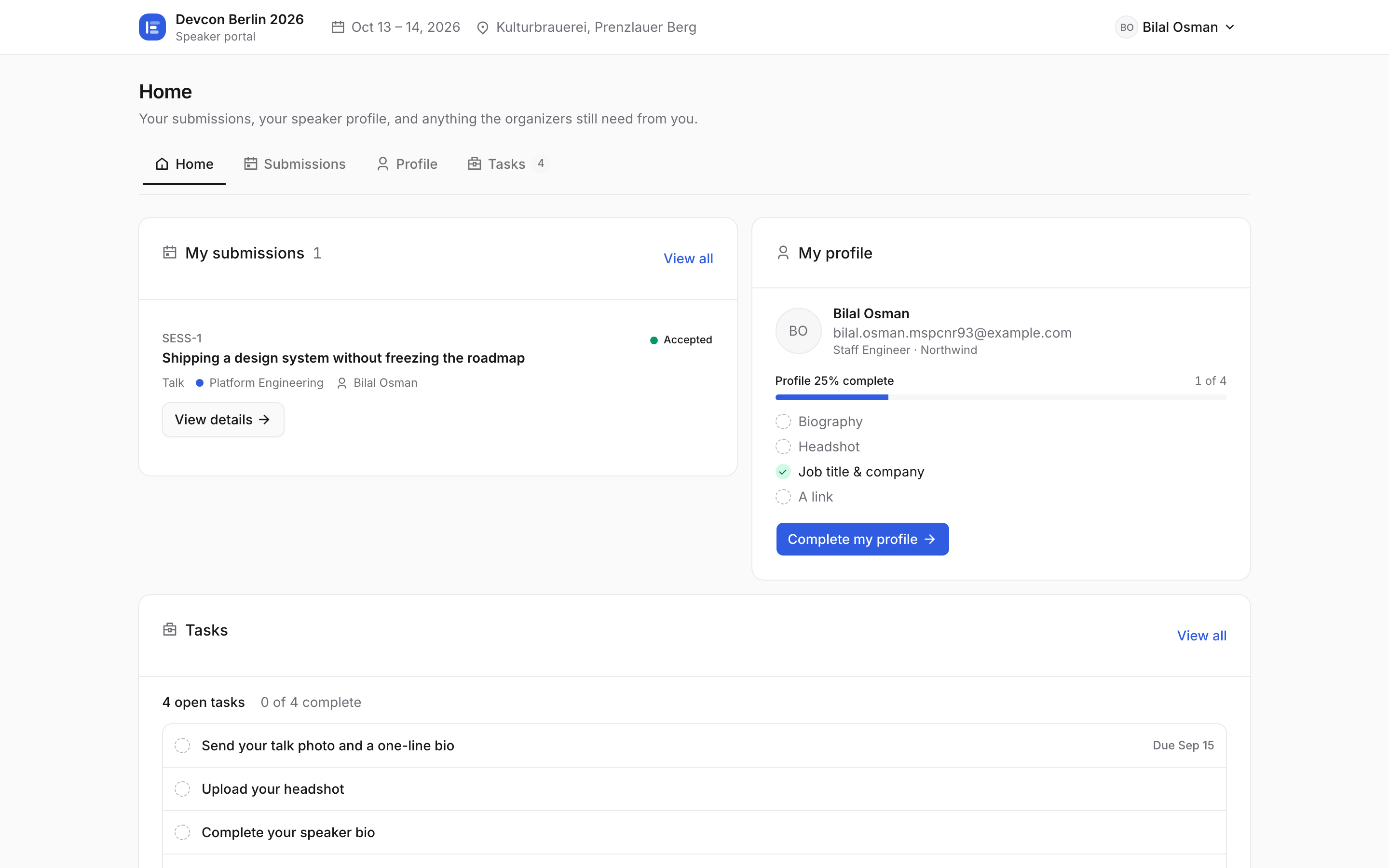
Your event's name, dates and venue sit across the top. Four tabs — Home, Submissions, Profile, Tasks — and Tasks carries a count so nothing gets forgotten. Home answers the two questions they actually have: what was decided, and what is still on me?
Their submission shows its status in your words — Accepted here. A profile bar counts what is filled in (biography, headshot, job title, a link), and the open tasks run underneath with their due dates.
Lost the link? They enter their email on your call-for-speakers page and we send a fresh one.
The link is the whole login, so it is also the whole security model: an address that already has submissions, tasks or a profile behind it never opens from the form itself — we email a new sign-in link to that address and show nothing about the account until it is opened. Up to three links an hour, and every one of them shows up in your Communications outbox as “Sign-in link”, so you can see it was sent.
Tasks is their to-do list from you: confirm the slot, upload slides, send a headshot.
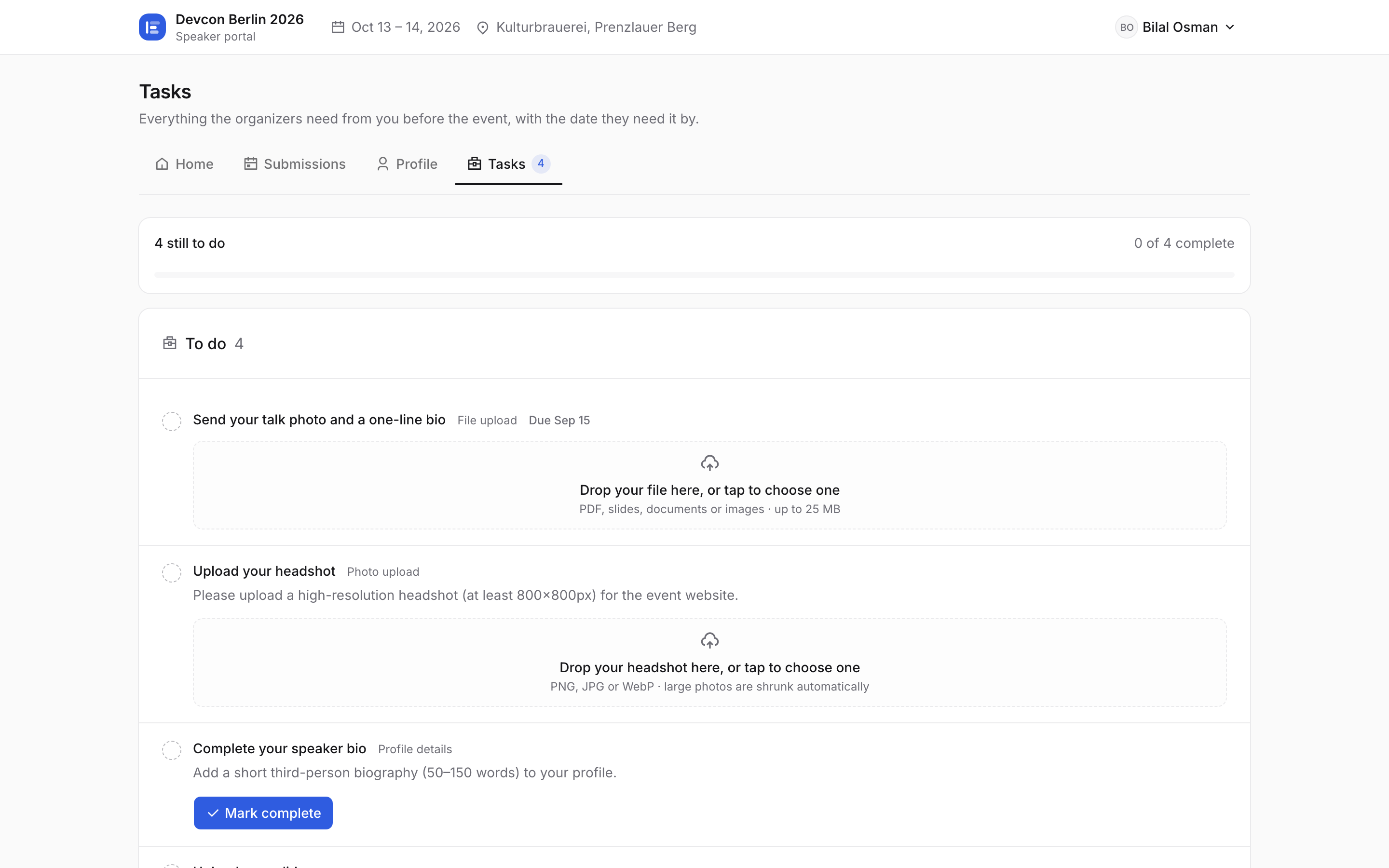
Top of the list is the task the organizer assigned a minute ago — anything with a due date sorts first. The three below it were created automatically the moment the talk was accepted. Submissions lists everything they sent you, with the same status wording you use.
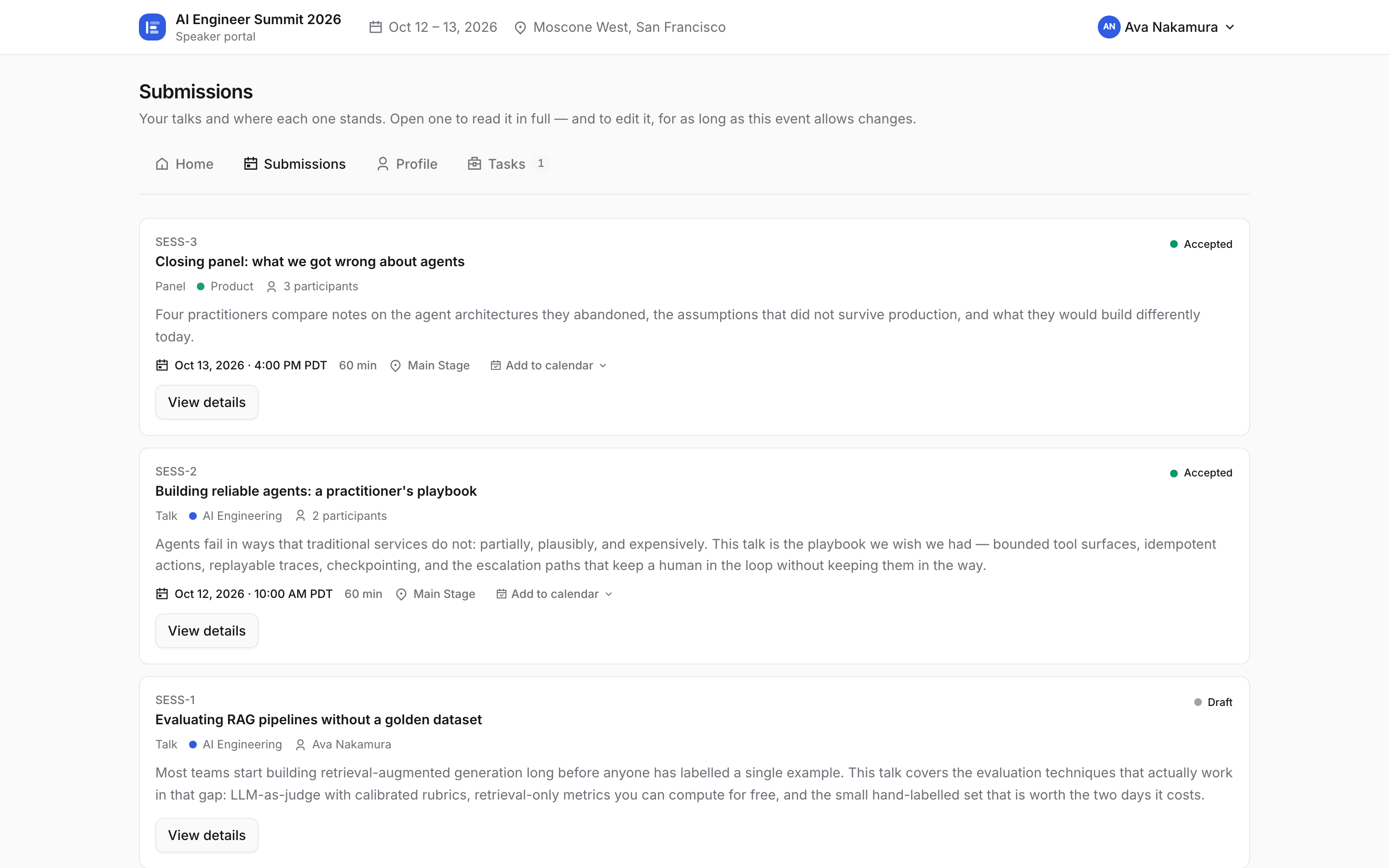
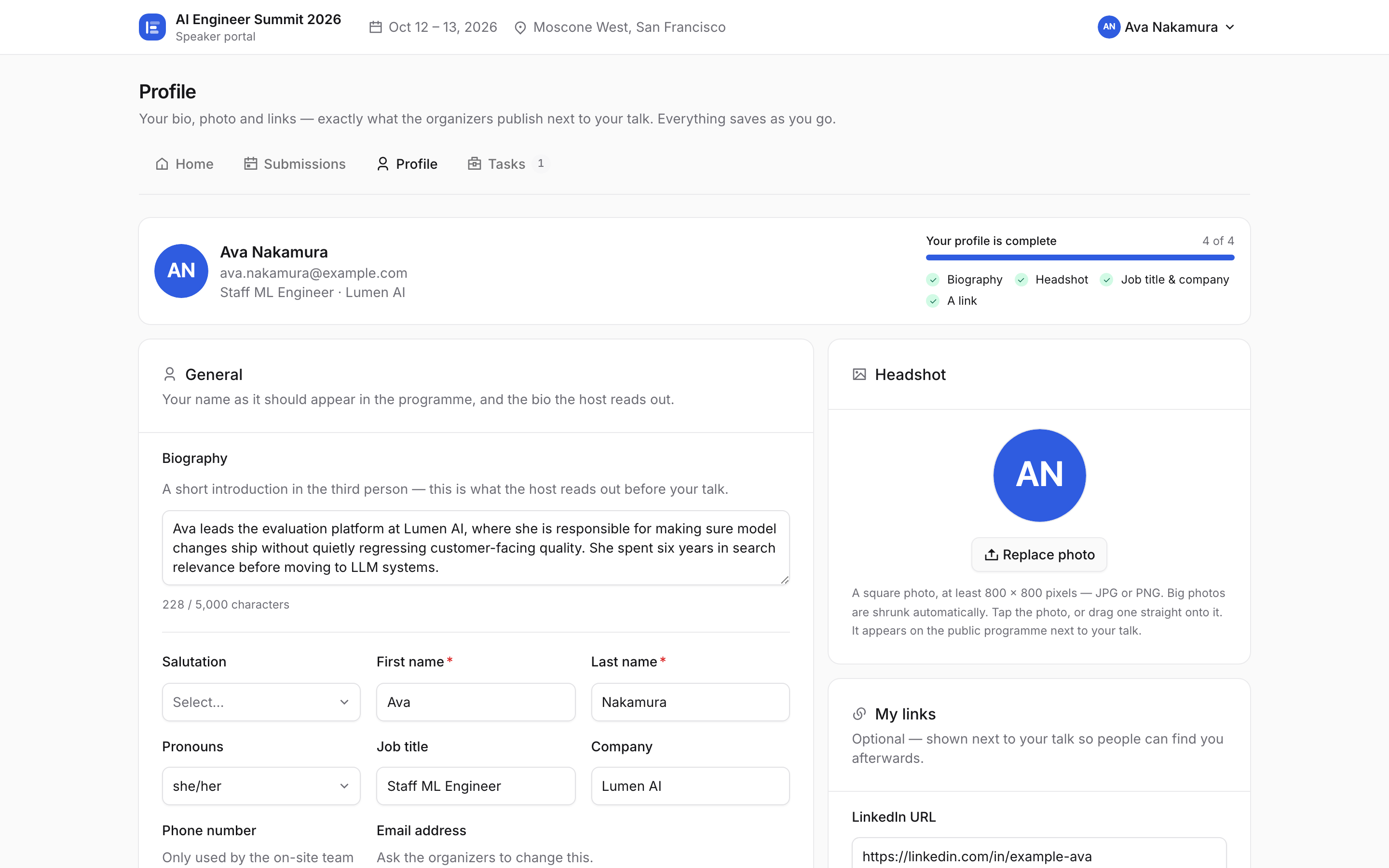
They can keep editing while your call is open — being accepted does not lock anything. Once the call closes, editing closes with it for everyone, unless you reopen it in the event's portal settings. Profile is where the bio, headshot, job title and links live. Whatever they save here is what appears on your public programme.
/portal and press Open the demo speaker portal — that is a real speaker on the sample event, with submissions, a profile and open tasks.