Build the agenda
Accepted sessions wait in a tray beside the grid. Move them into a room and a time until the tray is empty.
Open Agenda. Everything you accepted is sitting in “Not scheduled” on the right — nothing is on the grid yet.
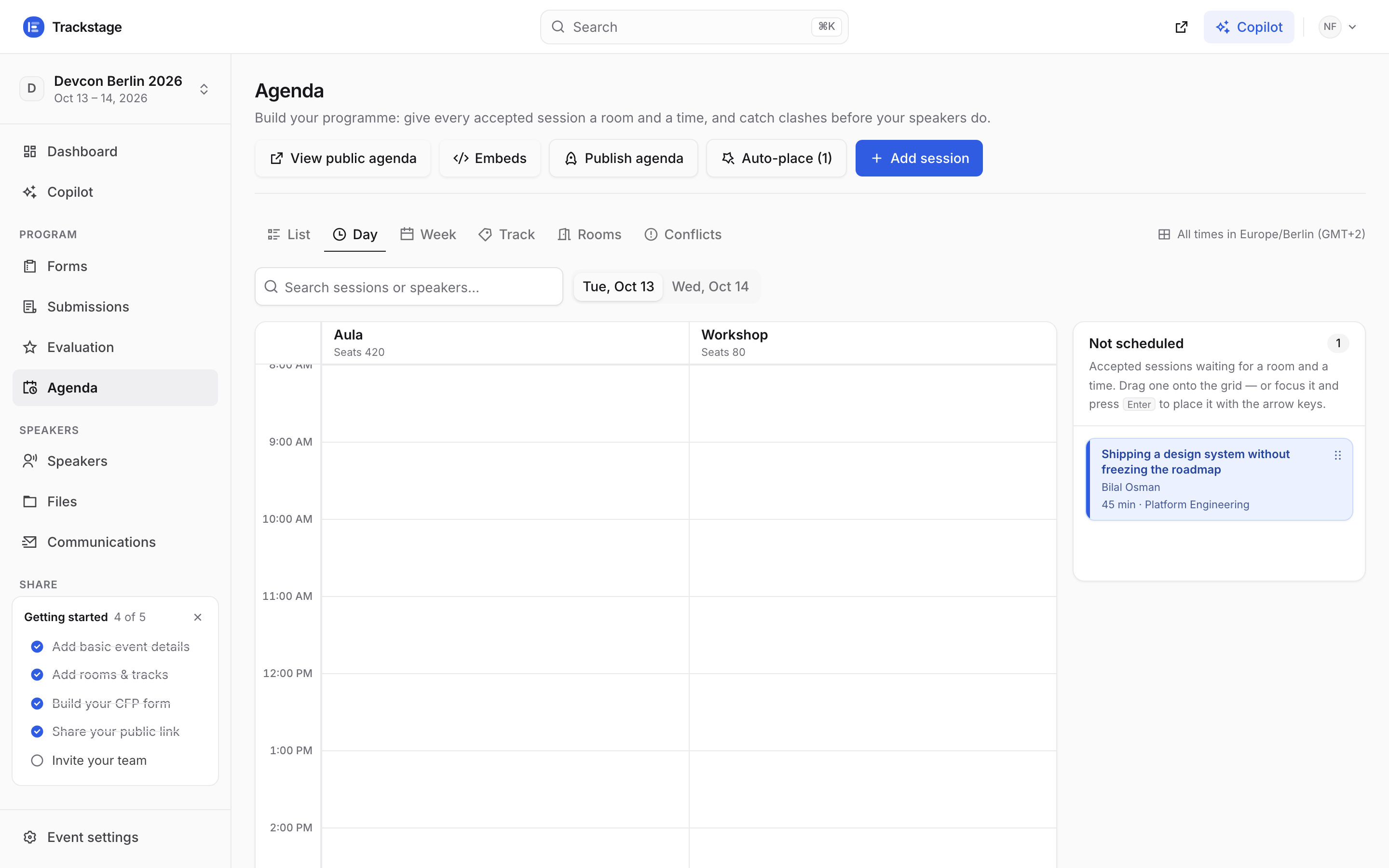
Six views share one board: List, Day, Week, Track, Rooms and Conflicts. The chip on the right names the timezone every time on screen is in. Drag a card onto the grid — or open it and pick a room, a day and a start time. Both save the moment you finish.
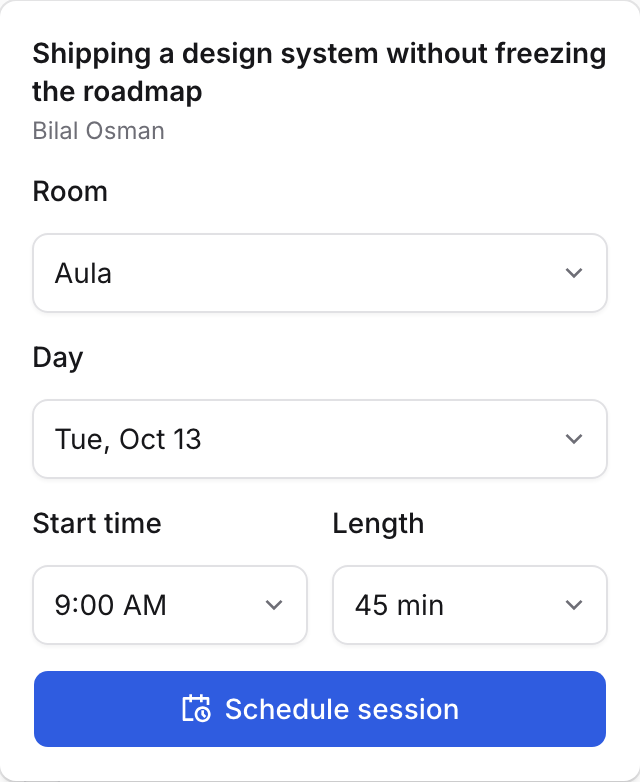
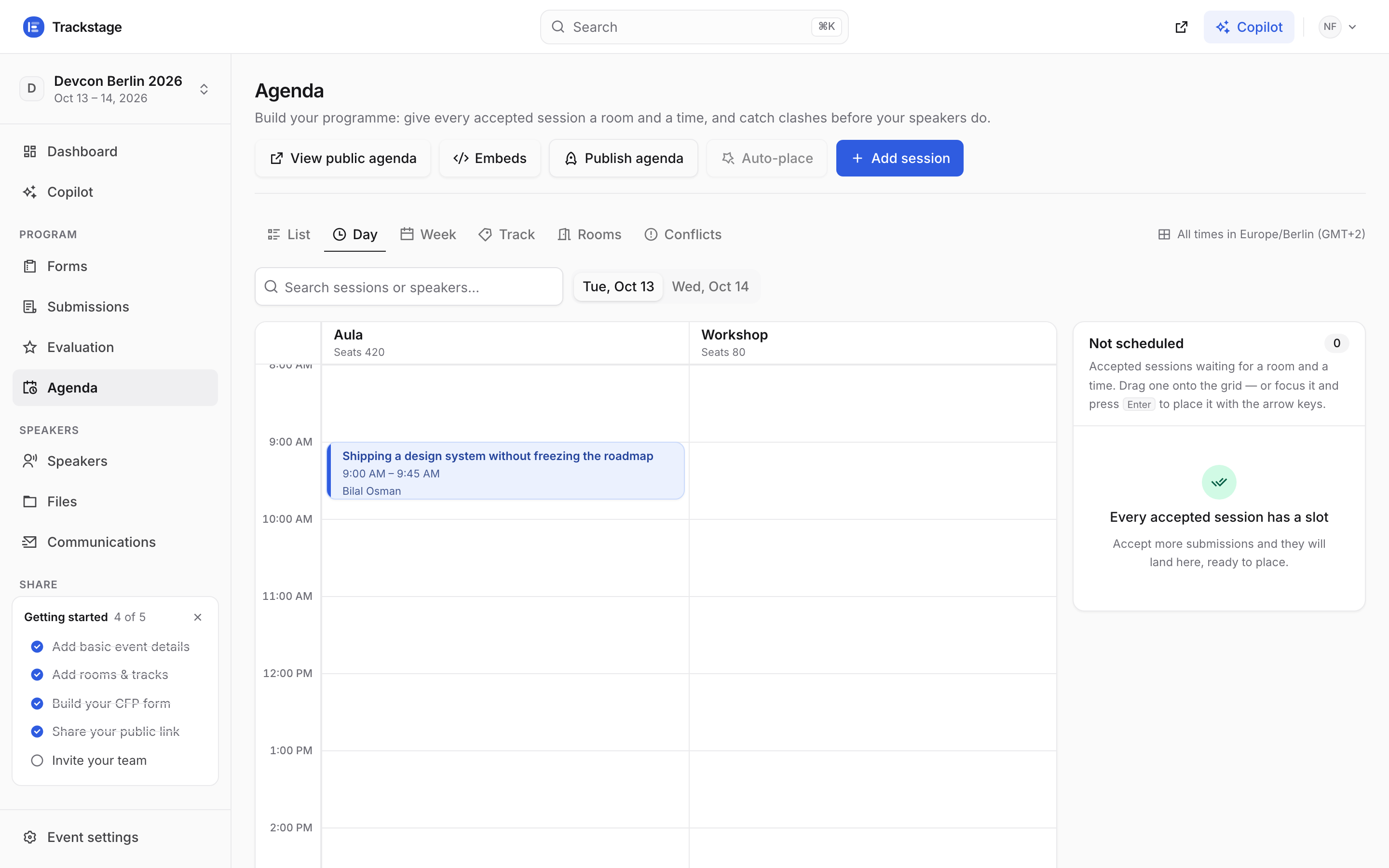
The click-to-schedule path exists so the agenda works on a laptop trackpad, a tablet, or by keyboard. Focus a card and press Enter to place it with the arrow keys. It lands on the grid, in the right room, in your event’s timezone.
Check Conflicts before you publish. It watches for two things: a room booked twice, and a speaker in two overlapping sessions.
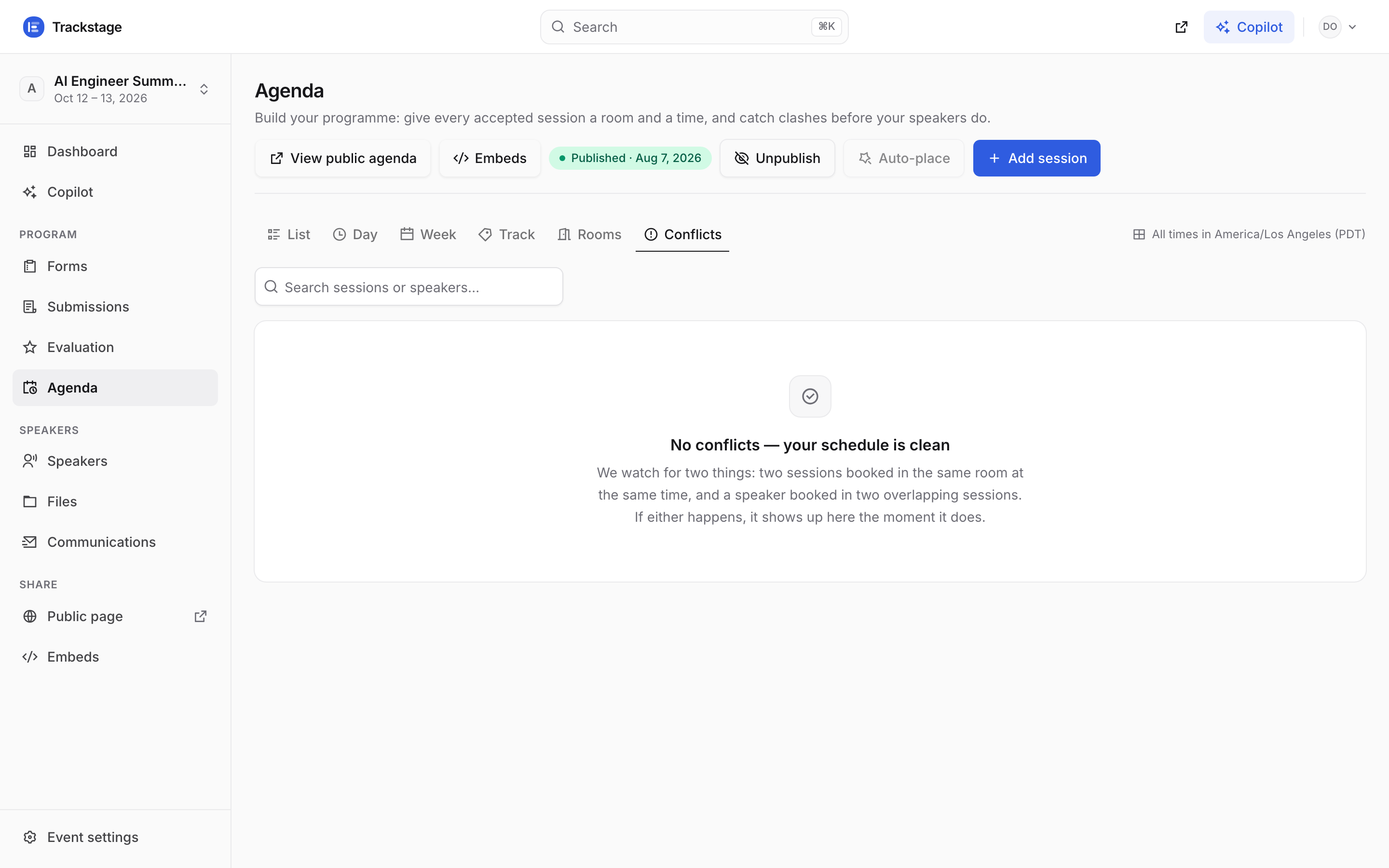
From a full, published event with nothing clashing — which is what you want to see here. Anything that does clash appears the moment it happens, and conflicts never block a drop: you decide.
In a hurry? Auto-place in the toolbar fills the grid for you — the number beside it is how many sessions are still waiting. It places everything that fits and tells you what did not. The AI copilot can do the same from a sentence.
Nothing here is public yet. The programme stays a private draft until you press Publish agenda — see Publish your program.